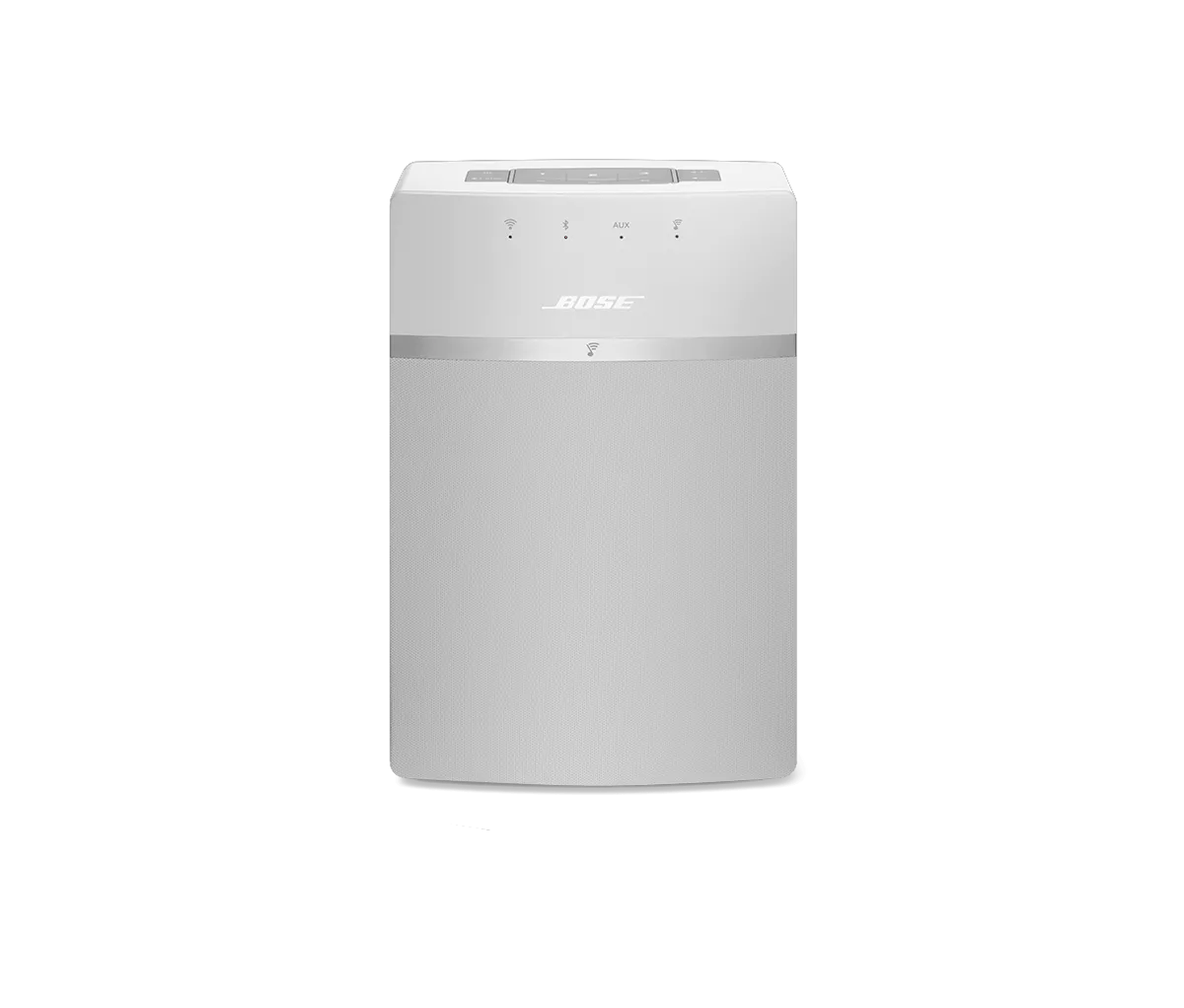
Determining the MAC address | SoundTouch® 10 wireless speaker
soundtouch®-10-wireless-speaker
SoundTouch® 10 wireless speakerVendu à partir de 2015 - 2020

Determining the MAC address | SoundTouch® 10 wireless speaker

To obtain the MAC address of the system using a tethered USB connection, follow these steps:

This method requires a computer (PC or MAC) and will work on all SoundTouch SM1 and SM2 products. It does not require us to determine the IP address of the system on the network
  1. In the SoundTouch computer app, begin the setup process (Settings > Add or Reconnect System)
  2. When you reach the "Connect to home Wi-Fi network" screen, choose "System Information" to view the system's MAC address


To obtain the MAC address of the system using a tethered USB connection, follow these steps:

This method requires a computer (PC or MAC) and will work on all SoundTouch SM1 and SM2 products. It does not require us to determine the IP address of the system on the network.
  1. Connect a USB cable from your computer to the SoundTouch system
  2. On a desktop/laptop computer, open a browser and go to http://203.0.113.1:8090/info
  3. The following info will be shown:
    1. System Name
    2. System Type
    3. SoundTouch Account Number
    4. Firmware Version
    5. SCM Serial Number
    6. System Serial Number
    7. SoundTouch Controller Information (if connected)
    8. SCM Information (MAC Address, Serial Number)
    9. SMSC Information (MAC Address, Serial Number)

Pour afficher l'adresse MAC du produit dans l'application SoundTouch :

  1. Dans le menu de l'application SoundTouch, appuyez sur Paramètres
    Astuce : pour ouvrir le menu de l'application, appuyez sur l'icône de menu ☰ dans le coin supérieur gauche

    \"Main

  • Appuyez sur À propos, puis sélectionnez un système

    \"Settings \"About

    L'écran Détails du haut-parleur affiche les informations du système sélectionné.

    \"Speaker

To find the MAC addresses of a newer SoundTouch system when its not connected to a network, follow these steps:

  1. Place the system in setup mode and connect a device to the Bose setup network.
  2. On the speaker's button pad, press and hold 2 and Volume – until the Wi-Fi indicator glows amber.
  3. Open the SoundTouch app on the connected device and go to Menu > Settings > Speaker Settings and select the system.
  4. Select CONNECT TO A WI-FI NETWORK and find the Bose setup network.
  5. Determine the IP address using a method below:

    1. Retrieve network info or run ipconfig/ifconfig from a computer.
    2. Click on the “i” icon in iOS settings.
    3. Once connected in Android, click on the network name. An Android device will show the phone or tablet’s IP address, so the router address will be the same first three octets, the fourth octet will need to be changed to .1

    • Once the system’s IP address has been determined, open a web browser and point it at [IP address]:8090/info
    • The page that loads will contain both MAC addresses for the system.

    Est-ce que cela a été utile ?

    YES
    NO
    COMMENCER LA RÉPARATION OU LE REMPLACEMENT