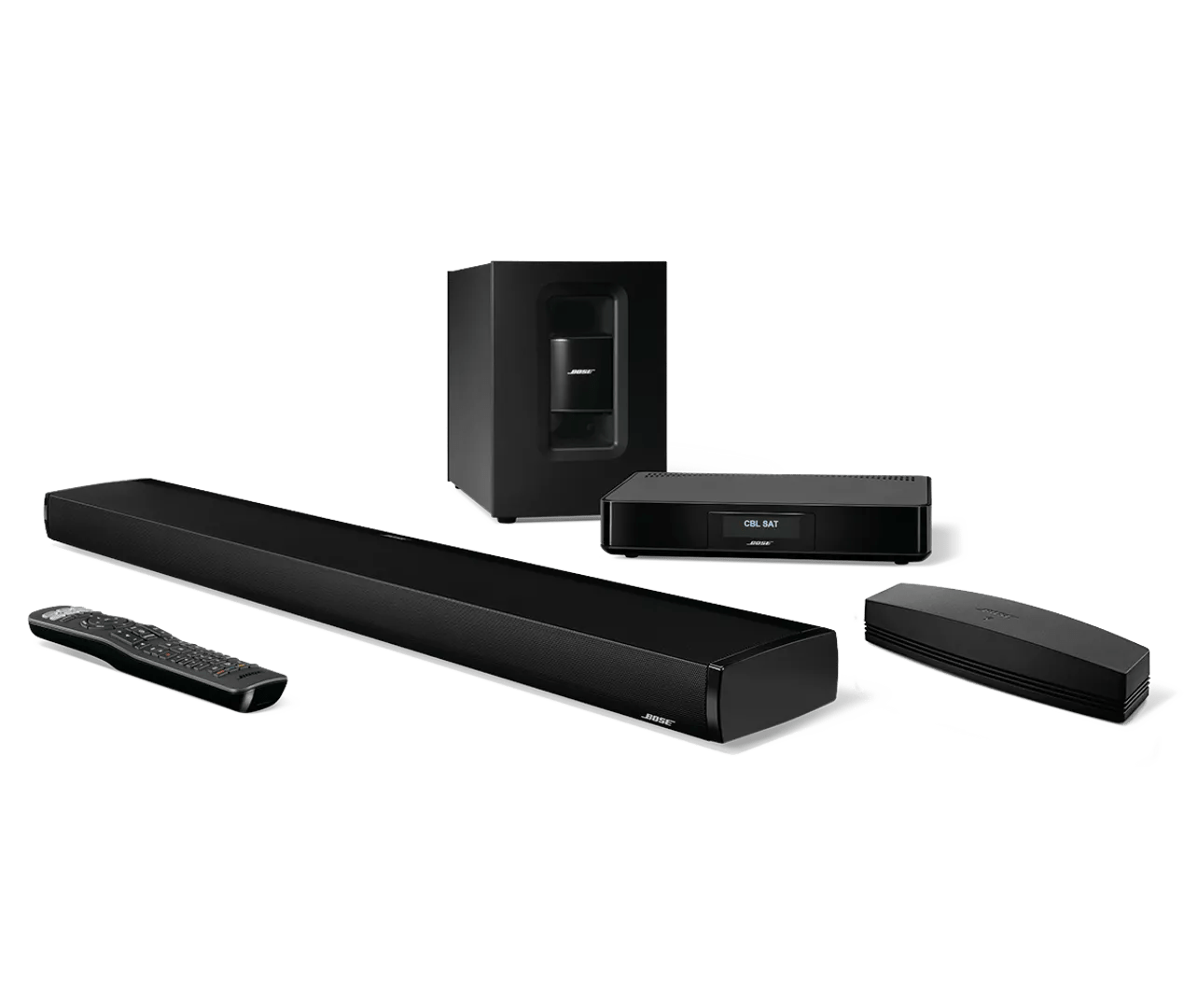
Mise à jour du logiciel ou du micrologiciel de votre produit | SoundTouch® 130 home theater system
Sélectionnez l’une des méthodes de mise à jour ci-dessous :
Mettre à jour à l'aide de l'application SoundTouch
Pour mettre à jour votre système SoundTouch depuis l’application SoundTouch :
- Dans l’app SoundTouch, sélectionnez l’icône de menu ☰ dans le coin supérieur gauche.
- Sélectionnez Paramètres > Paramètres du haut-parleur.
- Sélectionnez METTRE À JOUR LE LOGICIEL ou TOUT METTRE À JOUR si plus d’un système doit être mis à jour.
Si une mise à jour n'est pas disponible, le METTRE À JOUR bouton n'est pas sélectionnable. - Patientez pendant la mise à jour, qui peut prendre jusqu'à 20 minutes par système selon la taille de la mise à jour et la vitesse du réseau. Une fois la mise à jour terminée, le système redémarrera.
Mettez à jour en utilisant le mode de configuration sans fil
Update your system using the built-in setup network.
- Click here to download the update file for the SoundTouch adapter.
Do not rename the file. - Put the adapter into Setup mode:
• On the back of the adapter, press-and-hold the Control button for about 10 seconds, release the button when the Wi-Fi status indicator light next to the Control button flashes once then glows amber.
• The Wi-Fi status indicator light will glow amber while in Setup mode. - Connect to the Wi-Fi setup network of the SoundTouch adapter. The network name typically starts with Bose (e.g. Bose SoundTouch) or the name of you gave the system .
If you're device tells you there is no Internet connection with this network, connect anyway. - In a web browser, go to http://192.0.2.1:17008/update.html.
- Select Choose File, then select the update file you downloaded earlier to begin the update.
Mise à jour à l'aide d'un ordinateur et d'un câble USB
To update your product:
- Click here to download the update file for the SoundTouch adapter.
Do not rename the file. - Connect a USB cable from the computer to your system.
Tip: If your system has two USB jacks, use the smaller jack on the system. - Once connected, open an Internet browser on the computer and go to http://203.0.113.1:17008/update.html to open the updater.
IMPORTANT: This address will not work until you connect your system to a computer with USB as described in the steps above. - Click Choose File and select the update file downloaded in step 1.
- Click Upload to start the update.
- Wait while the sytsem updates: A progress bar shows the download status then, once completete, your system reboots.
- Disconnect the USB cable and close the updater window.
If your computer does not reconnect to your Wi-Fi network after updating your product, restart the computer.
Mettre à jour à l’aide d’une clé USB
To update your SoundTouch adapter using a USB drive:
- On a computer, click here to download the update file for the SoundTouch adapter.
- When prompted, save the Update.stu file. Do not rename the file.
If a download prompt does not appear, the file may have downloaded automatically. Look for file in a browser notification or in the Downloads folder. - Connect a blank USB drive to your computer and copy the update file to it, then disconnect the USB drive.
- Turn the Bose system on.
- On the back of the control console, disconnect the Bose link cable which hard-wired to the SoundTouch adapter.
- On the back of the SoundTouch adapter, insert the USB drive into the SETUP B connector.
- Unplug the USB cable from the SETUP A connector.
- Simultaneously press-and-hold the Control button and reconnect the Bose link cable to the control console.
- Three seconds after reconnecting the Bose link cable, release the Control button.
- Wait for the update to complete. The Wi-Fi indicator on the back of the adapter will blink during the update. This typically takes about five minutes.
- Once complete, disconnect the USB drive from the adapter.
- Reconnect the USB cable to the SETUP A connector.
- Reconnect the system to your network and Bose account. For more info, see Adding a system to your Bose SoundTouch account
Mettre à jour la console de commande à l'aide d'une clé USB
To update your system:
- Power on your system. The LED on the bass module should be solidly lit.
- On the back of the bass module, connect a USB flash drive to the port labelled Service or USB. After a few seconds, the bass module light turns green, might blink, then turns off.
If the light does not change after connecting the USB drive, remove and reinsert the drive. - When the light turns off, remove the USB drive.
- Click here to download the Bose updater for Windows or Mac, and complete the update process.
Obtenir de l'aide si la mise à jour ne s'installe pas.
Vérifiez la version du micrologiciel de votre produit.
Pour obtenir des instructions, consultez Vérification de la version du logiciel ou du firmware.
Pour savoir s'il s'agit de la dernière version ou si une version plus récente est disponible, reportez-vous à Versions des logiciels et des firmwares.