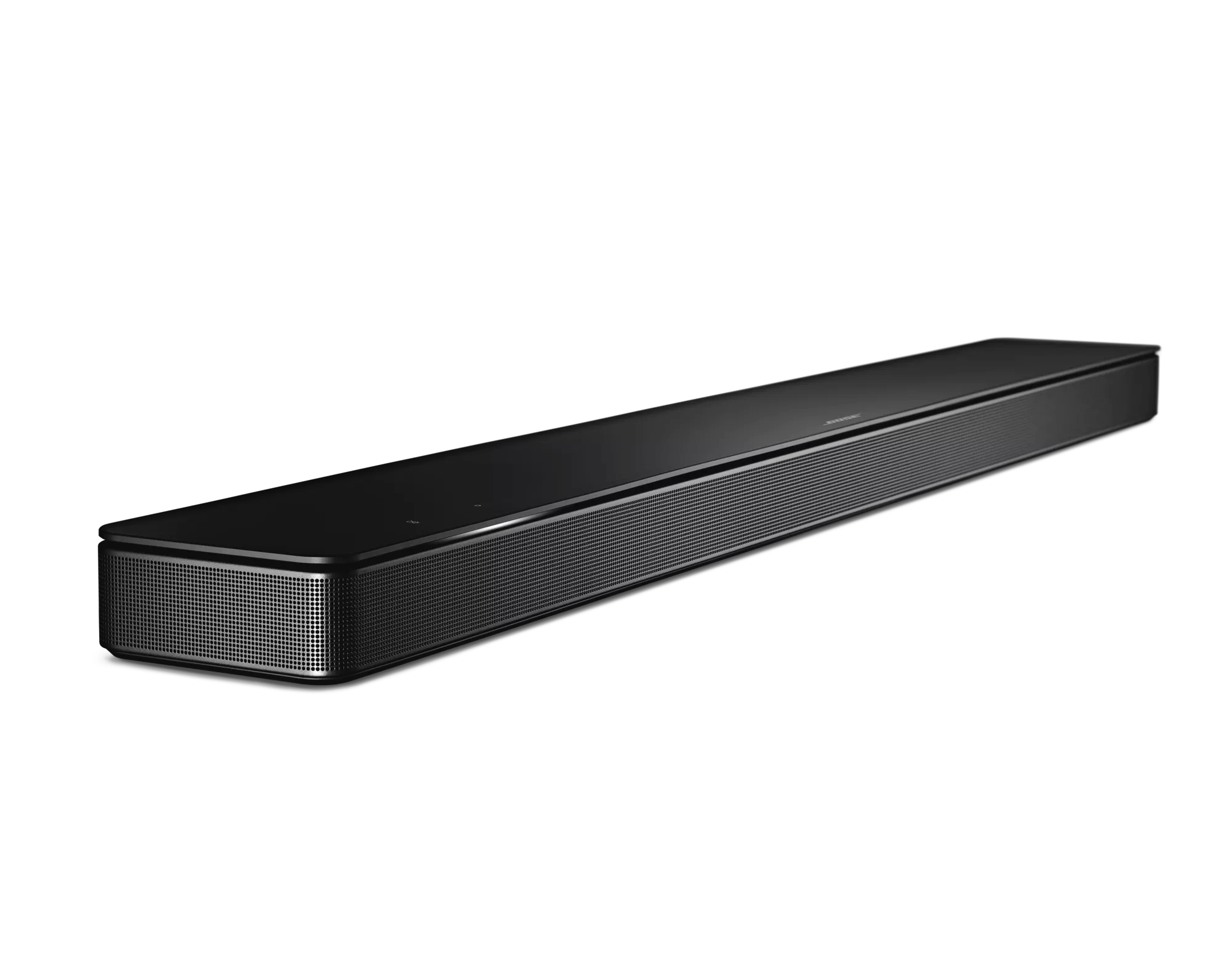
Sur votre produit, appuyez sur le bouton action et vérifiez s'il est à l'écoute de votre demande.
Taper sur le bouton Action â—‹ sur le dessus de votre produit lui indique d'écouter votre demande vocale. Pendant qu'il écoute, la barre lumineuse à l'avant de votre produit glisse vers le centre et s'illumine. Si la barre lumineuse ne fait pas cela lorsque vous appuyez sur le bouton Action, cela signifie qu'il n'écoute pas votre demande.
S'il y a du bruit dans la chambre, essayez de la réduire.
Si c'est le cas, je n'ai pas de bruit dans la chambre (c'est-à-dire plusieurs personnes parlant ou jouant de la musique à plein volume), votre produit peut ne pas vous entendre. Essayez de réduire le bruit dans la pièce, de parler plus fort ou de parler plus près du produit.
Essayez de diffuser une station de radio Internet ou un service musical pour confirmer que le produit est connecté à Internet.
Try phrasing the command differently.
Google Assistant can interpret many variations of command phrases and is always growing its vocabulary. Some phrases, however, might not be recognized. To determine if this is the issue, try phrasing the command differently.
If you are trying to control a music service by voice, be sure the music service has been added to your Bose and Google accounts.
Check that \"Web & App Activity\" is enabled in the Google Assistant app.
For the Google Assistant to work properly, enable "Web & App Activity" in your Google account. In the Google Assistant app, go to "Account" > "Manage your Google Account" > "Data & personalization," then turn on "Web & App Activity."
Not all Google Assistant features are available with non-Google devices.
Some Google Assistant features are unavailable on non-Google-made products. Additionally, some features of your Bose product cannot be accessed via Google Assistant. For information about Google Assistant features and abilities not supported with your Bose system, see
Features not available with Google Assistant.
Remove and re-add Google Assistant in the Bose app.
Open the Bose app and remove Google Assistant. Then, re-add the same Google Assistant account. This re-links Google Assistant to your Bose account and can correct any issues that may have occurred between the two accounts.
If troubleshooting fails and multiple customers are reporting this issue, contact the assist line to check if the service is down.
If all troubleshooting fails, the assist line can check if a service is down on the Bose Cloud Status Page.
Note: It is rare for a service to go down, so try all troubleshooting first.