Est-ce que cela a été utile ?
Mettre à jour le logiciel ou le firmware de votre produit | Bose Smart Soundbar
Lorsqu'une mise à jour est disponible, l’enceinte s’actualise automatiquement pendant la nuit, lorsqu’elle n’est pas utilisée.
Votre enceinte recherche des mises à jour tous les jours. Si une mise à jour est disponible et que l’enceinte est connectée à Internet, elle sera automatiquement téléchargée et installée. Cela se fait généralement la nuit ou lorsque votre système est inactif.

Pour rechercher une mise à jour :
- Assurez-vous que votre barre de son est connectée à un réseau disposant d'une connexion Internet fonctionnelle
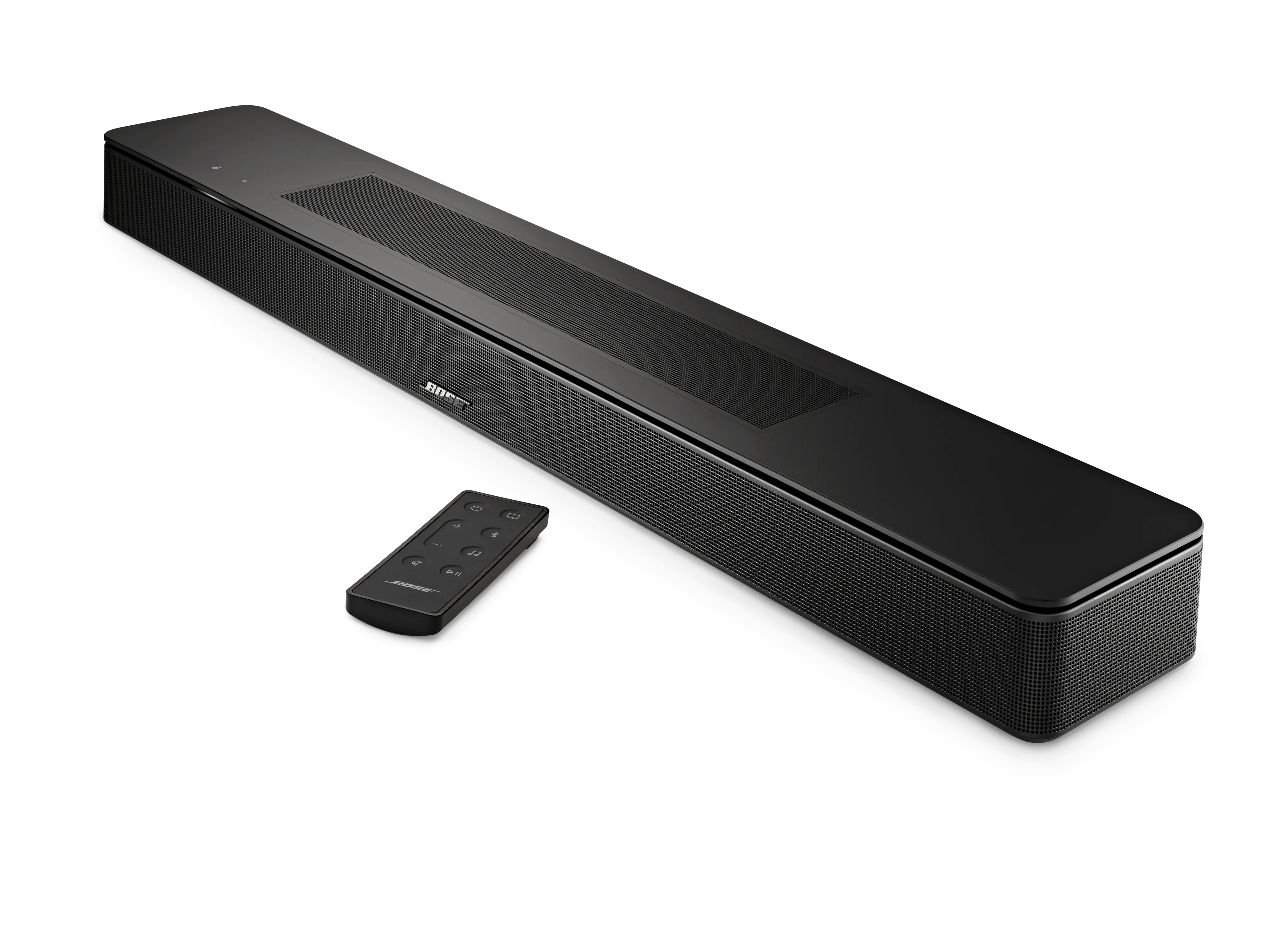
Conseil : vous pouvez tenter de lancer une diffusion en streaming d'un service musical ou de poser une question à un assistant vocal (si configuré) pour vérifier la connexion Internet - Sur la télécommande, appuyez simultanément et maintenez enfoncés les boutons Volume + et Musique
pendant 10 secondes :
- Si une mise à jour est disponible, une lumière blanche défilera sur la barre lumineuse pendant la mise à jour. Une fois terminée, la barre de son redémarrera
- Si aucune mise à jour n’est disponible, le produit redémarrera sans aucun défilement lumineux
Les autres méthodes ci-dessous peuvent être utilisées si les méthodes habituelles de mise à jour échouent
Les méthodes ci-dessus sont la façon la plus simple de mettre à jour votre produit Bose Smart. Cela nécessite que votre produit Smart soit connecté à Internet et que vous utilisiez l'application Bose. Si les méthodes classiques de mise à jour du système sont inaccessibles ou ne fonctionnent pas, vous pouvez essayer une méthode alternative.

Méthodes supplémentaires de mise à jour
Mise à jour via un ordinateur et un câble USB
To update your soundbar using a computer and a USB cable:
- On a computer, open an Internet browser and go to support.bose.com/bssb-fw to download the latest firmware update for your soundbar.
- When prompted, save the product_update.zip file. Do not rename, open, or unzip the file.
If a prompt to download the file does not appear, your browser may have downloaded the file automatically. Look for the file in a browser notification message or in the Downloads folder. - Connect a USB-A-to-Micro-USB cable from the computer to the SERVICE jack on the back of the soundbar.
- Reboot the soundbar by disconnecting its power cord for 30 seconds.
- While waiting, verify it was unplugged by tapping the Microphone Off icon on the top of the soundbar. No tone should be heard after tapping the icon.
- After reconnecting the power cord, the light bar pulses white for about 30 seconds as the soundbar reboots.
- Once rebooted, the light bar turns off
- On the remote control, simultaneously press-and-hold the Mute and Music buttons for 5 seconds to enter Service mode. The light bar on the soundbar glows white then turns off when you release the buttons.
- In a separate web browser or tab, go to the following address: http://203.0.113.1:17008/update.html
IMPORTANT: This address will not work until you connect a computer, reboot your product then enter Service mode as described in the steps above - Select Choose File then select the update file downloaded earlier
- Click UPLOAD then wait for the file transfer to complete.
Mise à jour par la méthode IP directe
To update your soundbar using the Direct IP method:
- Go to support.bose.com/bssb-fw to download the latest firmware update for your soundbar.
- When prompted, save the product_update.zip file. Do not rename, open, or unzip the file.
If a prompt to download the file does not appear, your browser may have downloaded the file automatically. Look for the file in a browser notification message or in the Downloads folder. - Reboot the soundbar by disconnecting its power cord for 30 seconds.
- While waiting, verify it was unplugged by tapping the Microphone Off icon on the top of the soundbar. No tone should be heard after tapping the icon.
- After reconnecting the power cord, the light bar pulses white for about 30 seconds as the soundbar reboots.
- Once rebooted, the light bar turns off
- Once the soundbar finishes rebooting, determine its IP address. For more info, see Determining the IP addressDetermining the IP address.
Be sure to check the IP address of the soundbar after rebooting since your router might assign it a new address. - In a web browser, type the IP address followed by :17008/update.html into the address bar (e.g. 10.0.0.6:17008/update.html) then press Enter.
- Select Choose File then select the update file downloaded earlier
- Click UPLOAD. The update file will begin to transfer and install.
- "UPLOAD COMPLETE" will appear in the browser once the file has been transferred to your soundbar.
- While the speaker is updating, a white light scrolls across the light bar on the front of the soundbar
- The update is complete when the light bar stops scrolling.
Mise à jour via le réseau intégré d'installation
To update your soundbar using the built-in setup network:
- Go to support.bose.com/bssb-fw to download the latest firmware update for your soundbar.
- When prompted, save the product_update.zip file. Do not rename, open, or unzip the file.
If a prompt to download the file does not appear, your browser may have downloaded the file automatically. Look for the file in a browser notification message or in the Downloads folder. - Restore the factory settings of the soundbar. For more info, see Resetting your product
- On your device that downloaded update file, open its Wi-Fi menu then connect to the network name that begins with Bose followed by the name of your soundbar.
If you are prompted that the connection has no Internet access, choose to connect to the network anyway. - In a separate web browser or tab, go to the following address: http://203.0.113.1:17008/update.html
IMPORTANT: This address will not work until you restore your product to the factory settings then connect to its built-in network as described in the steps above. - Select Choose File then select the update file downloaded earlier
- Click UPLOAD. The update file will begin to transfer and install.
- "UPLOAD COMPLETE" will appear in the browser once the file has been transferred to your soundbar.
- While the speaker is updating, a white light scrolls across the light bar on the front of the soundbar
- The update is complete when the light bar stops scrolling.